
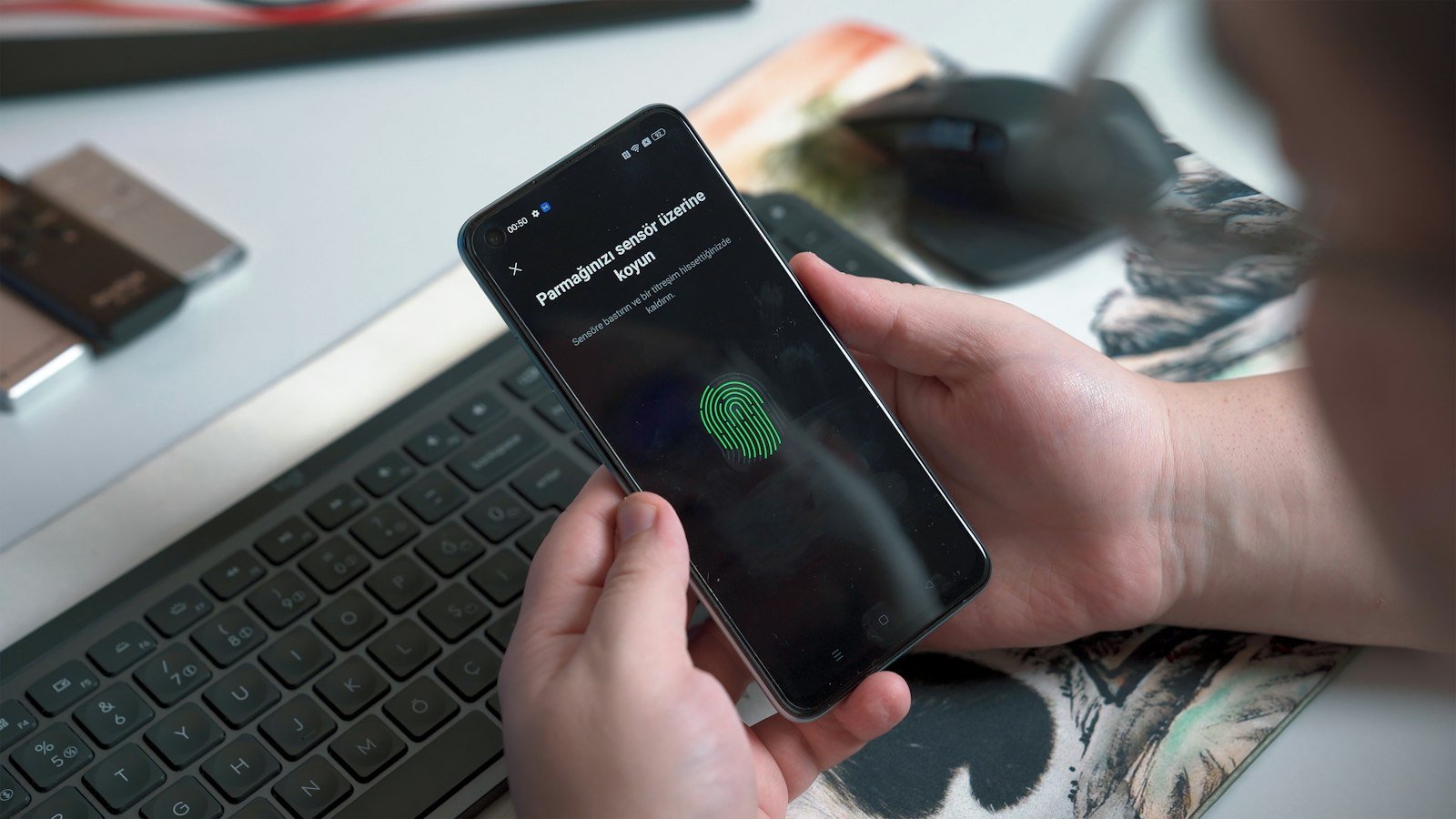
You have probably typed a password today, mistyped it, and then clicked “Forgot password” anyway. It is a small daily tax, and it is also the weak link that attackers target with fake login pages and stolen databases. Passkeys are the industry’s answer: a way to sign in with your fingerprint, face or device PIN instead of a string of characters you have to remember. This guide explains how they work, what changed recently, and how to move over without locking yourself out of anything important.
What a passkey actually is
A passkey is a replacement for a password that uses public-key cryptography. When you create one for a website or app, your device generates a pair of keys. The public key goes to the service. The private key stays with you, on your phone, computer or inside your password manager.
When you sign in, the service sends a challenge, and your device proves it holds the private key after you unlock it with a fingerprint, face scan or PIN. No shared secret travels across the internet, so there is nothing for a data breach to leak in a form that can be reused elsewhere.
Passkeys are built on standards from the FIDO Alliance and the W3C (the WebAuthn standard), which is why the same idea works across Apple, Google, Microsoft and many independent apps.
Why they beat passwords in everyday life
The practical benefits are easy to feel once you try one.
- Phishing resistance. A passkey is tied to the real website address it was created for. A look-alike page cannot trick your device into using it.
- Nothing to remember or reuse. There is no password to forget, and no temptation to reuse one across sites.
- Faster sign-ins. One touch or glance replaces typing and, often, a one-time code.
- Less breach damage. Services store only public keys, which are useless to a thief on their own.
None of this makes you invincible. If someone gets into your unlocked phone or your password manager account, they may reach your passkeys. That is why the way you protect your device and your manager still matters.
Synced versus device-bound passkeys
Not all passkeys live in the same place, and the difference affects how easy recovery is.
Synced passkeys are stored in a cloud-backed account such as your Apple, Google or Microsoft account, or in a third-party password manager. They follow you to a new phone and survive a lost device, which is the right choice for most people.
Device-bound passkeys, such as those on a physical security key, never leave the hardware. They are very strong, but if you lose the key and have no backup, you need another way in. Anyone using one should register a second key or keep a recovery method.
What changed recently: moving passkeys between managers
One long-standing complaint about passkeys was lock-in. If you wanted to change password managers, your passwords could be exported, but passkeys were hard to carry along. That is starting to change.
On September 10, 2026, Google announced a way to move passwords and passkeys between password managers on Android without creating an unencrypted file. According to Google, the new manager hands the request to Android, which finds compatible apps on the device. You confirm, approve the transfer in your existing manager, and the data moves between the apps in seconds. Launch partners named were Google Password Manager, 1Password, Bitwarden and Dashlane, with more expected, and the feature requires Android 8 or later.
The older approach required exporting passwords to a plain text file and could not move passkeys at all. If you have been staying with one provider only because leaving seemed painful, this lowers the barrier. Check your own manager’s support before relying on it, since availability depends on the apps you use.
A real-world scenario: Maya’s weekend switch
Maya, a freelance designer in Denver, has about 140 saved logins, a banking app, two email accounts and a work Google account. She is tired of two-factor texts and nervous about moving everything at once.
On Saturday morning she does not touch the banking app. Instead she starts with her main email account and her Google account, since those can reset everything else. She updates her recovery phone number, confirms she can sign in on her laptop, then creates a passkey from her phone.
After lunch she adds passkeys to three shopping and streaming sites where a mistake costs little. She leaves the old passwords in place on every account, because most services still allow both. By Sunday she has tested each passkey from her laptop and phone. Only then does she move on to financial accounts, one at a time, saving a recovery code for each.
Her rule was simple: add the passkey, test it from a second device, and only then consider removing the password. She finished with nothing broken and a noticeably shorter sign-in routine.
A safe switching plan
You do not need to convert everything in one sitting. A gradual approach protects you from lockouts.
- Secure the foundations first. Make sure your email, phone carrier and main cloud account have strong protection and up-to-date recovery options.
- Update your devices. Passkeys need reasonably current operating systems and browsers. Install pending updates before you start.
- Pick where passkeys will live. Choose your platform account or a password manager that supports them, and turn on its sync and backup features.
- Start with low-risk accounts. Practice on a shopping or media site before touching banks or work logins.
- Test from a second device. A passkey that works only on the device that created it is not yet a safe setup.
- Keep a fallback. Save recovery codes and keep the password until you are confident.
- Move the high-value accounts last, one by one, checking each before continuing.
Mistakes that cause lockouts
Most passkey horror stories come from a handful of avoidable errors.
- Deleting the password too early. Keep it until the passkey has worked on more than one device.
- Ignoring recovery. If your phone number or backup email is outdated, getting back in after a lost phone becomes hard.
- Letting the device lock go weak. A passkey is only as safe as the screen lock protecting it. Use a real PIN or biometric, and avoid sharing it.
- Switching phones carelessly. Before wiping an old device, confirm your passkeys have synced to the new one.
- Mixing up managers. If passkeys sit in two places, you may forget which one holds which login. Pick one primary home.
Should you still use a password manager?
Yes, for now. Many sites and apps do not support passkeys yet, and plenty of services will keep offering passwords as an alternative for years. A good manager stores both: unique random passwords for sites that need them and passkeys for sites that offer them.
Think of it as a transition rather than a cliff. Over time, the number of passwords you actually type should shrink, but the manager remains useful as the single place where your sign-in credentials are kept, backed up and, thanks to the newer transfer options, moved if you ever change your mind.
Key takeaways
- A passkey uses a private key stored on your device and a public key held by the service, so there is no shared secret to steal.
- They resist phishing because they only work on the genuine site they were created for.
- Synced passkeys are easier to recover; device-bound ones need a backup plan.
- Google announced on September 10, 2026 that Android can now move passwords and passkeys between supported managers without an unencrypted file.
- Switch gradually: secure email first, test on a second device, keep recovery codes, and delete passwords last.
Frequently asked questions
Can someone steal my passkey if my phone is stolen?
A thief would still need to get past your screen lock, fingerprint or face check. Use a strong PIN, turn on remote lock and find-my-device features, and know how to sign out of your cloud account remotely if a device goes missing.
What happens if I lose the phone that holds my passkeys?
If your passkeys are synced through your platform account or password manager, you can restore them on a new device after signing in and verifying your identity. If they are device-bound, you will rely on a second registered key or each service’s recovery method, which is why backups matter.
Do I have to give up passwords entirely?
No. Most services let you keep both for now. You can adopt passkeys where they are offered and continue using strong, unique passwords stored in a manager everywhere else.
Sources
- Google: Switching password managers is easy and safe on Android (announcement details, September 10, 2026)
- FIDO Alliance: How FIDO works (background on the standard; page located via search, not independently fetched)