
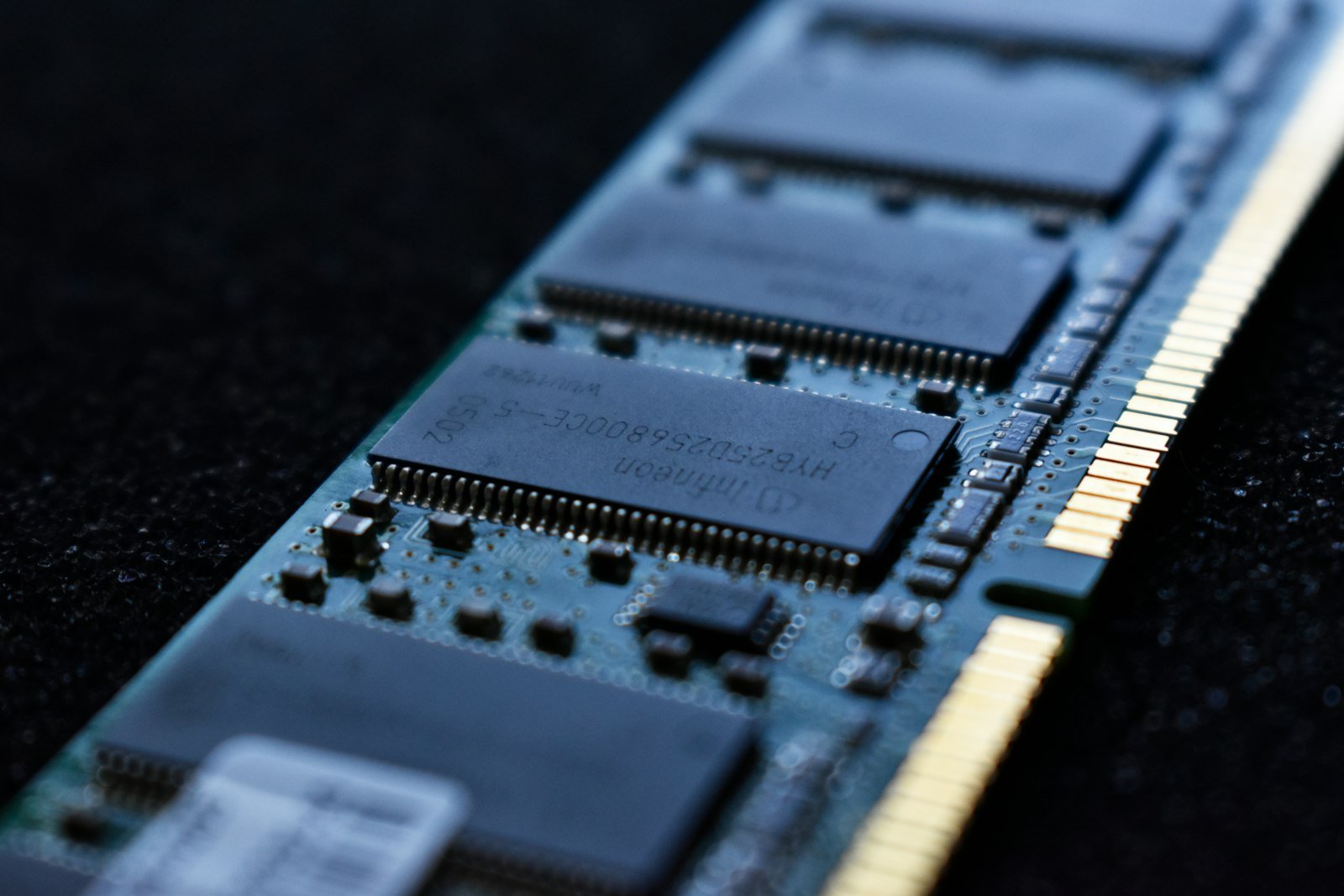
“How much RAM do I need?” is one of the most common questions in computing, and one of the most frequently answered with a single number that ignores how people actually use their machines. The honest answer depends on what you do, how many things you do at once, and how long you want the computer to stay useful. This guide explains what RAM does and how to size it sensibly.
What RAM Actually Does
RAM, or random access memory, is the short-term workspace of your computer. When you open an application or a file, the data is loaded into RAM so the processor can reach it quickly. Storage, such as an SSD, holds your data permanently but is slower to access. Think of RAM as a desk and storage as a filing cabinet. A bigger desk lets you spread out more work without constantly fetching papers from the cabinet.
RAM is not the same as storage capacity, and it is not directly a measure of speed. Having more RAM will not make a computer faster if you were never running out of it. But having too little can slow everything down dramatically.
What Happens When You Run Out
When RAM fills up, the operating system moves some data to a reserved area of storage, often called a page file or swap. This keeps things running, but storage is far slower than memory, so the computer can feel sluggish, stutter, or freeze briefly while switching between tasks. If your machine slows down badly when you have many tabs or apps open, memory pressure is a likely culprit.
Sizing by How You Work
There is no universal figure, but general patterns hold across most usage types.
Everyday Use: Browsing, Email, Documents, Streaming
Light users can be comfortable with a modest amount of memory, provided they do not keep huge numbers of browser tabs open. Modern browsers are memory hungry, and each tab, extension and web app consumes some. If you tend to keep dozens of tabs alive, you will benefit from more headroom than the basics suggest.
Office and Multitasking
If you routinely run video calls, spreadsheets, a browser full of research and a messaging app at the same time, memory use adds up quickly. A middle-of-the-road amount gives you breathing room and reduces the slowdowns that come from constant swapping.
Creative Work: Photo, Video and Audio
Editing high-resolution photos, multi-layer projects, video timelines and audio sessions with many tracks all benefit from generous memory. Creative applications often cache large amounts of data to keep previews responsive. If your work involves large files or complex projects, prioritize more RAM, and check the recommendations from the software you rely on.
Gaming
Games have recommended memory levels listed by their developers, and these are a good starting point. Remember that your operating system, a browser, voice chat and launchers all run alongside the game and use memory too. If you stream or record gameplay, you will need more headroom still.
Development, Virtual Machines and Data Work
Running virtual machines, containers, local databases or large datasets can consume memory quickly. Each virtual machine typically needs its own allocation on top of what your main system uses. For these workloads, more RAM is among the most practical upgrades you can make.
Speed, Channels and Type
Capacity gets most of the attention, but other factors play a role. Memory comes in different generations that are not interchangeable, so you must buy the type your system supports. Speed ratings affect performance modestly, with the impact varying by workload and processor. Many systems also perform better when memory is installed as a matching pair, which allows a dual-channel configuration. This often matters for integrated graphics, which share system memory with the rest of the computer.
Laptops: Check Before You Buy
This is the part that catches many people out. In many modern laptops, especially thin and light designs, memory is soldered to the board and cannot be upgraded later. Some models offer a socket you can use, and others combine soldered and upgradable memory. Before buying, check whether the machine’s memory is upgradeable. If it is not, buy the amount you will need for the life of the computer, not just today.
Unified Memory and Different Architectures
Some systems use a unified memory design in which the processor and graphics share a single pool. In these designs the same amount of memory may behave differently than in a traditional PC, because it serves several roles. Compare like with like, and follow the guidance for the specific platform you are considering rather than assuming the numbers translate directly.
How to Check What You Are Using
- Open your system’s built-in activity or task monitor.
- Work as you normally would, with your usual apps and tabs open.
- Watch memory use over several days, especially during your heaviest tasks.
- If usage regularly approaches the maximum and the system slows down, more RAM will likely help. If you rarely come close, extra memory will not add much.
Common Myths
- “More RAM always means faster.” Only if you were running short. Beyond your needs, extra memory sits idle.
- “Unused RAM is wasted.” Operating systems use spare memory for caching, which is normal and helpful, so high usage numbers are not automatically a problem.
- “Clearing memory with a utility boosts performance.” Such tools often just force the system to reload data, which can make things slower.
The Bottom Line
Choose RAM based on your workload, your habits and your plans for the future. Measure what you actually use, leave some headroom for growth, and pay close attention to whether a laptop’s memory can be upgraded. A little thought up front can save you from both overspending and from a computer that feels outdated far too soon.
[…] buying, think about what you actually need. Our guide to how much RAM you need can help you avoid overpaying for specs you will never […]