
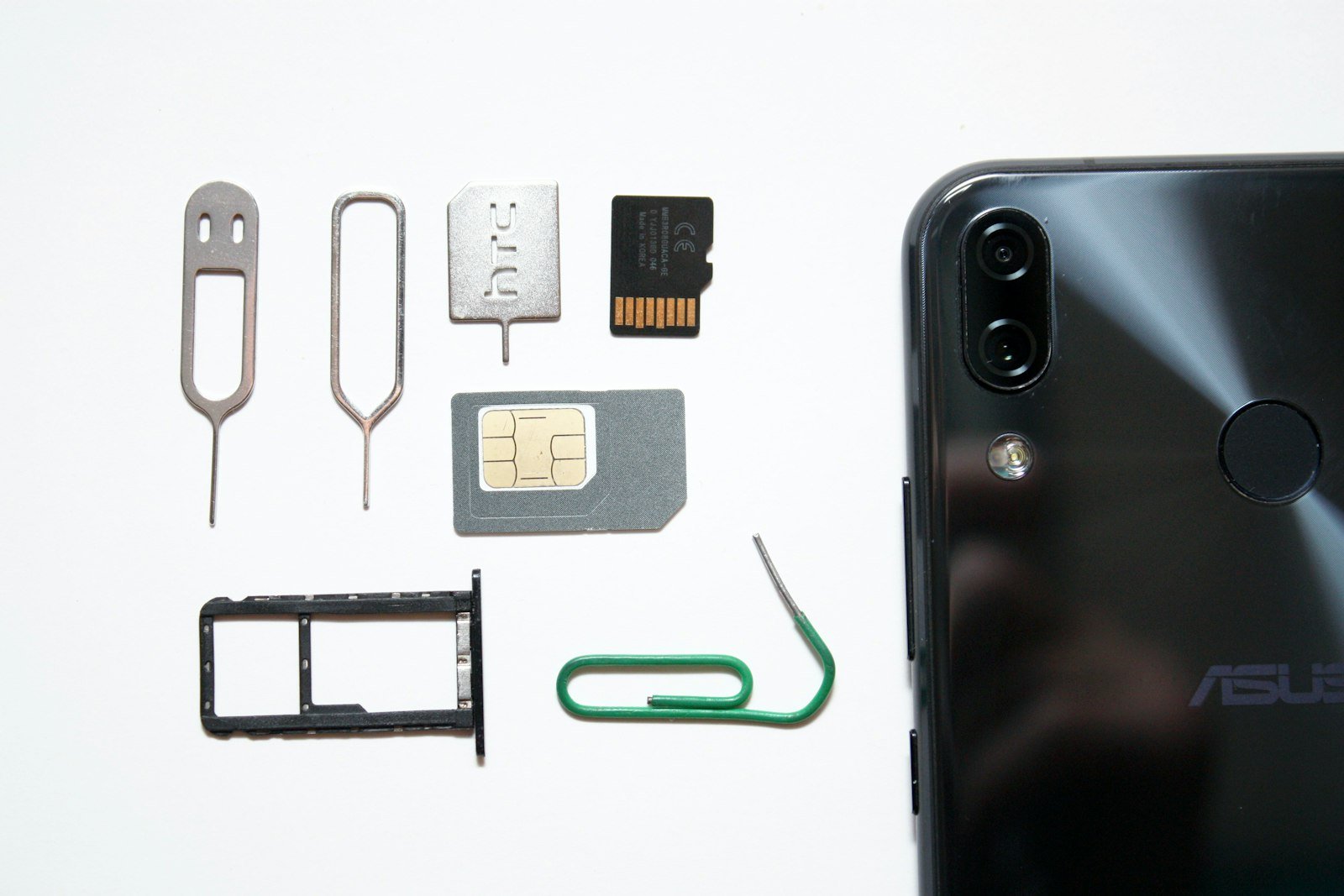
You unbox the new phone, power it on, and reach for the little ejector pin. Then it hits you: there is no SIM tray, or the one you remember is gone. For millions of Americans upgrading this fall, that moment is the first real encounter with eSIM, and it is where a smooth upgrade can turn into an hour on hold with your carrier.
The good news is that moving your number to an eSIM is usually quick, as long as you prepare for it. This guide explains what an eSIM is, how the switch works on iPhone and Android, and the mistakes that most often leave people without service.
What an eSIM actually is
A traditional SIM is a small plastic card that identifies your phone line to a carrier. An eSIM does the same job, but the identity lives in a chip built into the phone. Your carrier sends a profile to the device over the internet, and the phone installs it. No card, no tray, no tiny pin.
That has practical consequences. Nobody can pull the card out of a stolen phone to use your line elsewhere, and you never have to worry about whether you need the right SIM size. The trade-off is that moving the line to a new phone is now a software task instead of a physical swap, so it helps to understand the process before you need it.
Why this matters more for iPhone owners
If you buy an iPhone in the United States, you are already in the eSIM world. According to a recent walkthrough from US Mobile, iPhone 14 through iPhone 17 models are eSIM-only in the US. That means there is no physical SIM tray to fall back on, so a transfer plan is part of any upgrade.
Android is more mixed. Many current Android phones support eSIM, often alongside a physical SIM slot, but the options vary by brand and model. Check your specific phone’s specifications or your carrier’s device page before assuming it works the way an iPhone does.
The main ways to move your line
There are three common routes, and which one you use depends on your carrier and your old phone’s condition.
- Phone-to-phone transfer. Apple’s Quick Transfer moves a line over Bluetooth between two nearby iPhones, provided your carrier supports it. Both phones need to be working and close together.
- Carrier app or website. Many carriers let you start the transfer from their app. You typically confirm your account, enter the new phone’s identifier, and the line activates without a QR code.
- QR code or carrier activation. Some carriers send a QR code to scan, or activate the line when you sign in during setup. This is also the fallback if your old phone is lost, broken or already traded in.
A converted physical SIM is another option. On supported iPhones, Settings, then Cellular, then Convert to eSIM turns your existing physical SIM into an eSIM in a few taps. If you do not see that option, your carrier may not support the feature.
A step-by-step plan before you upgrade
Most failed transfers come down to skipped prep. Work through this list before you wipe or trade in anything.
- Confirm the new phone is unlocked or carrier-compatible. A phone that is still locked to a different carrier will not accept your eSIM. If you are unsure, our guide on unlocked versus carrier-locked phones explains how to check.
- Update both phones. Install the latest operating system on the old and new devices so the transfer tools behave as expected.
- Find the new phone’s identifier. You can dial *#06# or open Settings, General, About to see the IMEI, which many carrier tools ask for.
- Connect the new phone to Wi-Fi. The eSIM profile downloads over the internet, so a stable connection matters.
- Start the transfer while the old phone still works. This is the single most useful habit. Do not erase or trade in the old phone until the new one shows service.
- Test calls, texts and data. Place a call, send a message and load a web page before you consider the job done.
A concrete scenario: the weekend upgrade
Picture Dana, who gets a new phone on Saturday morning. She has the old one in her hand and a trade-in label printed for Monday. She updates both devices, connects the new phone to Wi-Fi, and opens her carrier’s app on the old phone to start the line transfer. A few minutes later the new phone shows signal bars.
She places a test call, sends herself a text, and only then restores her apps and photos from her backup. Her two-factor codes, which arrive by text, work immediately.
Now picture the other version. Dana restores her backup first, erases the old phone to speed up the trade-in, and then discovers the line has not moved. Without the old phone, she has to prove her identity to her carrier before it will issue a new activation. It is fixable, but it turns a ten-minute task into a frustrating afternoon, and any texted login codes are stuck in the meantime.
What the transfer does not move
This is the part people miss. As the US Mobile guide puts it, “The eSIM moves the line, not your data or apps.” Your photos, messages, app data and settings travel through a separate process, such as Apple’s device migration, iCloud, or Google’s backup and restore tools on Android.
Treat these as two independent jobs. One gets your number working on the new phone. The other makes the new phone feel like yours. Doing both, in either order, is fine, but do not assume finishing one completes the other.
Common problems and how to fix them
- A single wrong digit in the IMEI. This is the most common cause of a failed carrier-app transfer. Re-enter it slowly.
- No transfer button in the app. Update the carrier app first. Some carriers also require account security settings, such as two-factor authentication, to be turned on.
- The transfer stalls. Restart the new phone, confirm it is on Wi-Fi, and try again. If it still hangs, ask the carrier for a fresh activation.
- The convert option is missing. Your carrier may not support converting a physical SIM. Ask for a QR code or in-app activation instead.
- Accidentally deleting the eSIM. On iPhone, use the Turn On This Line switch to disable a line temporarily. Avoid Delete eSIM unless you are canceling service, because you will likely need your carrier to reissue it.
Travel is where eSIM shines
Once you are comfortable with the basics, eSIM becomes genuinely useful. On phones that support two lines, you can keep your home number active for calls and texts while adding a local data plan abroad. Many foreign carriers and travel providers offer eSIM setup by scanning a QR code, which beats hunting for a SIM card at an airport kiosk.
Before you rely on this, check that your phone is unlocked and that your carrier allows a second line or roaming for texts. Support for running two eSIMs at once also differs between phone models, so confirm yours with the manufacturer.
Security is the other quiet benefit. Because there is no card to steal, a thief cannot simply move your line into another handset. That does not make your account untouchable, so keep a strong carrier account PIN and be wary of anyone asking you to read out a verification code.
Key takeaways
- An eSIM is a built-in chip that replaces the plastic card, and it is installed over the internet.
- iPhone 14 through 17 models are eSIM-only in the US, so plan the transfer before you upgrade.
- Start the line transfer while your old phone still works, and do not erase or trade it in until the new one has service.
- The transfer moves your phone line only. Back up and restore your data and apps separately.
- Make sure the new phone is unlocked, updated and on Wi-Fi before you begin.
- Converting a physical SIM to an eSIM on iPhone is one-way, so confirm you are ready first.
Frequently asked questions
Can I go back to a physical SIM after switching to eSIM?
It depends on your phone. On models with a SIM tray, you can usually ask your carrier for a new physical SIM. Converting an existing SIM to an eSIM on iPhone is one-way, and your old card is permanently deactivated, so returning to plastic means contacting your carrier for a replacement.
What if my old phone is lost or broken?
You can still move your number, but you will need your carrier. Contact support or visit a store, verify your identity, and ask for a new eSIM activation or QR code for the new phone. This takes longer than a transfer from a working phone, which is why starting early matters.
Will my text-message login codes still work?
Yes, once the line is active on the new phone, texted codes arrive there. The risk is the gap between phones. If you can, switch banking and email accounts to an authenticator app before you upgrade, so a delay with your line does not lock you out.
Sources
- US Mobile: Transfer your line to a new iPhone via eSIM
- iDrop News: How to transfer your iPhone’s SIM to an eSIM