
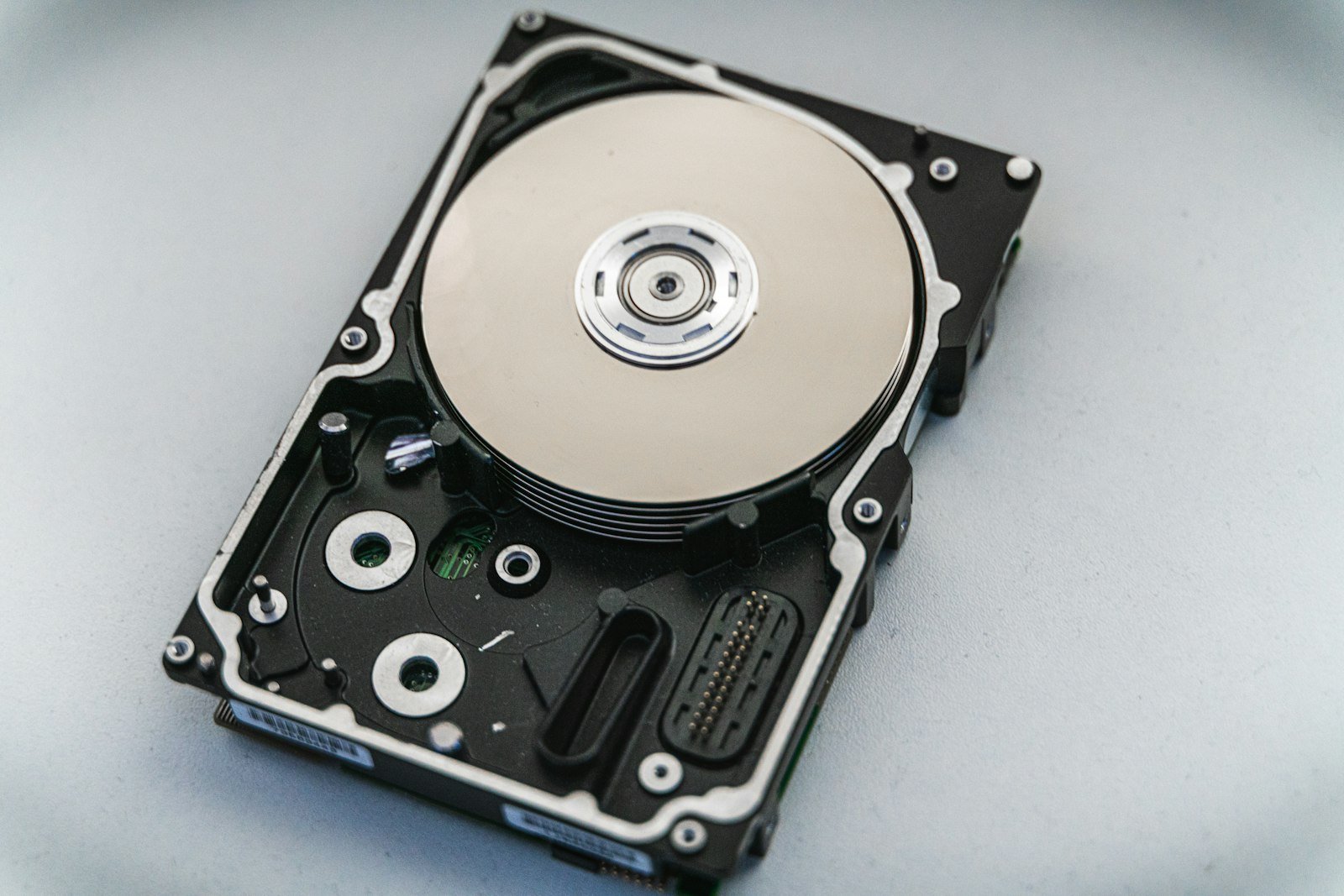
You open your laptop and a ransom note fills the screen. Or the drive that holds a decade of family photos makes a clicking sound and never spins up again. Or you simply delete the wrong folder and empty the trash. Every one of these has happened to ordinary people, and every one is survivable if you set up the right backups before the bad day arrives.
The good news: a decades-old rule of thumb still covers most of it. Here is how to apply the 3-2-1 backup rule at home, without becoming an IT professional.
What the 3-2-1 Rule Actually Says
The rule is short enough to memorize. Secure Data Recovery and iFeelTech both describe it the same way:
- 3 copies of your data: the original plus two backups.
- 2 different types of storage, such as an internal drive plus an external drive or a network storage box.
- 1 copy offsite, for example in a cloud backup service, so a fire, flood or theft at home cannot take everything.
The logic is simple. Each requirement protects against a different failure. Multiple copies protect against a single dead drive, different media types protect against one kind of failure hitting everything, and the offsite copy protects against disasters that hit your whole house.
Why Sync Is Not Backup
This is the mistake that bites the most people. Services like OneDrive, Google Drive, Dropbox and iCloud keep files matching across your devices. That is convenient, but it also means a deletion or a corrupted file spreads everywhere just as quickly.
iFeelTech puts it plainly: sync tools propagate changes and deletions, including encrypted files, to every connected device, so sync is not a versioned, independent backup. Secure Data Recovery makes a similar point about iCloud, noting that deleting a file on a device can delete it from iCloud too.
A real backup keeps older versions and sits apart from your day-to-day files. If a service only mirrors what is on your laptop, treat it as convenience, not protection.
Ransomware Changes the Math
Modern ransomware does not only lock your files; it goes looking for your backups. iFeelTech notes that attackers often target backups on the same network, which is why the offsite copy should be something your local computers cannot freely overwrite or erase.
That article also describes an extended version of the rule, 3-2-1-1-0: add one immutable or air-gapped copy, and verify backups so restore tests come back with zero errors. An immutable backup cannot be altered or deleted after it is created, even by an administrator. For a household, that can be as simple as a cloud service with version history and a drive that you unplug and keep disconnected between backups.
It also cites a Sophos report of 5,000 IT leaders, which found that among organizations with a tested backup strategy, 97 percent recovered data without paying the ransom. That statistic comes from business settings, but the lesson applies at home: tested backups are your best leverage.
A Simple Home Setup, Step by Step
You do not need enterprise gear. A workable plan looks like this:
- Audit what matters. Secure Data Recovery recommends listing what you store and how important each item is before choosing tools. Photos, tax records, school work and creative projects usually top the list.
- Pick a local backup. An external drive, portable SSD or network storage box works as the second type of media. Many operating systems include built-in backup software.
- Add an offsite copy. Choose a cloud backup service. Prices vary, so compare current plans.
- Automate it. Secure Data Recovery suggests scheduling backups, ideally off-hours, because automation reduces human error.
- Protect the accounts. iFeelTech lists leaving backup accounts without multi-factor authentication as a common mistake. Turn it on.
- Test a restore. More on that below.
What Cloud Storage Costs
As of March 2025, Secure Data Recovery listed these starting points. Pricing changes often, so treat the figures as a snapshot and check each provider before buying:
- Google One: 15 GB free, with paid plans starting at $1.99 per month for 100 GB.
- iCloud+: 5 GB free, with plans starting at $0.99 per month for 50 GB.
- Microsoft 365 Personal: $9.99 per month for 1 TB, with Family at $12.99 per month for 6 TB.
- Dropbox: 2 GB free, with plans starting at $9.99 per month for 2 TB.
- Backblaze: starting at $9.00 per month for unlimited data on a single computer.
Remember that several of these are sync-oriented services. A dedicated backup product that keeps versions is a better fit for the offsite copy than a shared folder.
Don’t Forget the Restore Time
Backups are not only about whether the data exists, but how fast you can get it back. iFeelTech estimates that restoring 500 GB over a 100 Mbps connection takes roughly 12 to 15 hours. That is why the local copy matters: it gets you running quickly, while the cloud copy is your insurance against the worst case.
If you have a large photo or video library, factor that in. A cloud-only plan may be fine for documents but painfully slow for a full recovery.
A Real-World Scenario: The Patel Family Photos
Consider a hypothetical family with 400 GB of photos, videos and tax records spread across two laptops and a phone. Their only protection is a shared cloud folder.
One evening a teenager’s laptop picks up ransomware. The malware encrypts the local files, and the sync service dutifully uploads the scrambled versions. Because the cloud folder is just a mirror, the clean copies are gone unless the service offers version history they never checked.
Now rerun it with a better plan. They add a portable SSD that backs up automatically each night, and a cloud backup with versioning as the offsite copy. Once a quarter, a parent restores a random folder to confirm that it opens. When the ransomware hits, they wipe the laptop, restore from the SSD within hours, and keep the cloud copy as a safety net. The difference is a small monthly fee and an afternoon of setup.
How to Test Your Backups
An untested backup is a hope, not a plan. Secure Data Recovery suggests a straightforward routine:
- Pick what to test, such as an incremental cloud backup or a system image on a physical drive.
- Restore to a separate location, like an external drive, so you do not overwrite your current files.
- Open documents, photos, music and video to check for corruption.
- Write down the date and any problems.
- Repeat on a schedule: monthly, quarterly or yearly, depending on how important the backup set is.
iFeelTech recommends testing restores at least quarterly and documenting results, including how long recovery took.
Common Mistakes to Avoid
iFeelTech lists several errors that undermine otherwise decent backup plans. Most apply just as well to a household as to a small office:
- Treating file sync as backup.
- Keeping the “offsite” copy in the same building as the original.
- Never testing a restore.
- Forgetting cloud application data, such as email and documents stored in Microsoft 365 or Google accounts.
- Ignoring phones and tablets, which often hold the only copy of recent photos.
- Leaving backup accounts without multi-factor authentication.
Run through that list once and fix whatever applies. It takes minutes, and it closes the gaps that cause the most heartbreak.
Key takeaways
- Follow 3-2-1: three copies, two media types, one offsite.
- Cloud sync is not backup; deletions and encrypted files spread to every device.
- Keep at least one copy that ransomware cannot reach, such as a versioned cloud backup or an unplugged drive.
- Automate backups and turn on multi-factor authentication for backup accounts.
- Test a restore regularly; a backup you have never restored is unproven.
Frequently Asked Questions
Is iCloud or Google Drive enough as my only backup?
Usually not. They are designed to sync files, so deletions and corruption can propagate. They can serve as one of your copies, but pair them with a separate local backup and a versioned offsite option.
How often should I back up?
As often as you can tolerate losing data. iFeelTech recommends at least daily for important data, and automation makes that painless. For a casual home user, a nightly automatic backup is a sensible default.
Do I need a network storage box?
Not necessarily. An external drive or portable SSD satisfies the second media type for most households. A network storage device becomes attractive when several people and devices need to back up to one place.
The Bottom Line
You cannot prevent every drive failure, burglary or malware infection. You can make sure none of them is permanent. Set up three copies, spread them across two kinds of storage, keep one offsite, automate the schedule and test a restore. An hour of effort now is far cheaper than the worst afternoon of your digital life.